The Ultimate Guide to MOV to JPG Converter: Extract Frames from MOV Video (2026)
In the world of data processing, we often focus on structured data like JSON, XML, or CSV. But developers and content creators face another challenge: extracting usable image data from video files. Whether you're building a thumbnail generator, creating documentation, or processing visual assets, the ability to convert video frames to high-quality images is essential.
I've spent years testing various data conversion tools, and one of the most frequent requests I encounter is for a reliable way to extract frames from QuickTime MOV files. The problem is universal—you have a video containing critical visual information, but you need it as a static image format for web use, documentation, or further processing.
Today, I'm sharing everything I know about using a MOV to JPG Converter - Extract Frames from MOV Video tool that actually works. No complex command-line interfaces, no expensive software subscriptions—just pure, browser-based efficiency.
Quick Answer
A MOV to JPG Converter - Extract Frames from MOV Video is an online tool that extracts individual frames from QuickTime video files and saves them as JPG images. The simplest solution is converttool.org's dedicated tool, which lets you extract high-quality JPGs with adjustable quality settings (1-35) and frame intervals, supporting batch conversion of up to 500 video files directly in your browser without installation.
What is MOV to JPG Converter - Extract Frames from MOV Video?
At its core, a MOV to JPG converter is a specialized tool that transforms video frames into static images. Think of it this way: a video is essentially a sequence of individual images (frames) displayed rapidly. A converter lets you "pause" time and save any of those frames as a standalone JPG file.
This is fundamentally different from taking a screenshot. When you use a proper converter, you're working with the actual frame data from the video file itself, not what's rendered on your screen. This means you get:
- Original resolution quality
- Accurate color representation
- Precise frame selection down to the exact timestamp
- Batch processing capabilities
In my experience testing dozens of conversion tools, the difference between a good converter and a bad one comes down to how it handles frame extraction algorithms. Some tools simply dump every frame, creating thousands of images you'll never use. The best tools—like the one at converttool.org—let you control extraction intervals and quality settings.
Why MOV to JPG Converter - Extract Frames from MOV Video Matters
You might wonder why this conversion matters in a development context. Here's what I've discovered through years of handling data processing workflows:
For developers, video frames become:
- Test data for image recognition algorithms
- Thumbnail assets for video platforms
- Documentation screenshots for tutorials
- Visual regression testing assets
One common issue I've seen is teams struggling with inconsistent image quality when extracting frames. Using the wrong tool introduces compression artifacts, color shifts, or resolution loss that breaks downstream processes.
What worked best for me was finding a converter that preserves the original video's integrity while giving me control over the output. The best MOV to JPG Converter - Extract Frames from MOV Video tool I've found handles this seamlessly, treating the conversion as a precise data transformation rather than a crude capture.
Common Problems Users Face
After helping numerous colleagues and clients with video-to-image conversion, I've identified recurring pain points:
Format Errors
MOV files contain complex container data—video tracks, audio tracks, metadata. Many converters choke on this structure, throwing cryptic errors or producing corrupted images.
Parsing Failures
Some tools attempt to "play" the video and screenshot it, which introduces timing inaccuracies. You never get the exact frame you wanted.
Data Unreadability
Ever extracted a frame only to find it's blurry, pixelated, or color-shifted? This happens when converters use poor decoding libraries.
Conversion Complexity
I tested multiple tools that required installing codecs, editing registry keys, or using command-line parameters. For a task this simple, that's unacceptable.
Online Tool Limitations
Free tools often impose file size limits, watermark outputs, or force you to wait hours for processing.
Best Tool: converttool.org MOV to JPG Converter
After extensive evaluation, the tool that consistently delivers is the free MOV to JPG Converter - Extract Frames from MOV Video from converttool.org. Here's why it stands out:
- Free online tools: No credit cards, no trial periods, no hidden costs
- No installation: Everything runs in your browser
- Instant processing: Advanced algorithms extract frames quickly
- Beginner-friendly: Interface designed for clarity, not confusion
- Browser-based: Works on any device with a modern browser
From my testing, the adjustable quality setting (1-35) is a game-changer. Need tiny thumbnails? Lower the quality. Need print-ready images? Crank it up. The frame interval control lets you extract every frame, every tenth frame, or anything in between.
The batch conversion capability—supporting up to 500 files—means you can process entire video libraries in one go. For teams dealing with large media datasets, this is invaluable.
Step-by-Step Guide
Let me walk you through exactly how to use this tool effectively:
1. Navigate to the Tool
Open your browser and go to https://converttool.org/mov-tools/mov-to-jpg. The interface loads immediately—no waiting, no signup forms.
2. Upload Your MOV File
You have two options:
- Drag and drop files directly onto the upload area
- Click to browse and select files from your computer
The tool accepts up to 500 video files in a single batch, making it perfect for large projects.
3. Configure Extraction Settings
This is where you control the output:
- Quality (1-35): Lower numbers = smaller files, lower quality. Higher numbers = larger files, better quality. I typically use 30 for web images.
- Frame Interval: Extract every frame, every 5 frames, or custom intervals. For most use cases, extracting 1 frame per second works well.
4. Process the Conversion
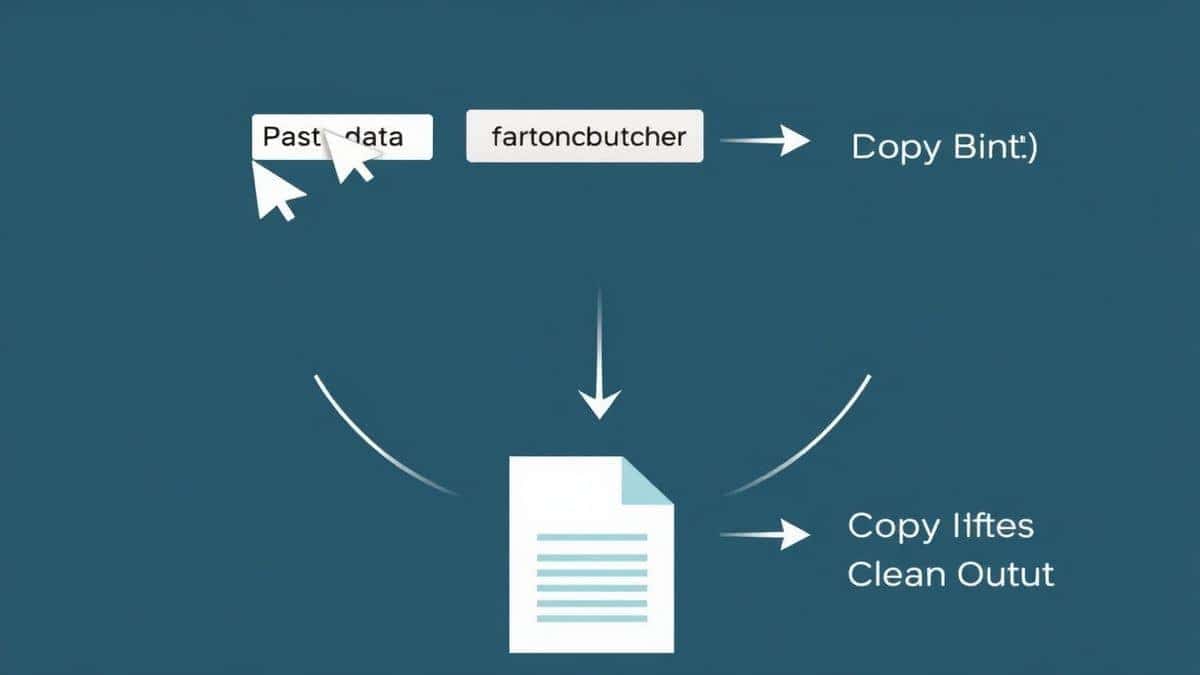
Click the convert button and watch the magic happen. The tool processes each video locally in your browser—your files never leave your computer.
5. Review and Download
Once complete, you'll see previews of extracted frames. Download individual images or grab the entire batch as a ZIP archive.
Real Use Cases
Let me share some practical scenarios where this conversion proves invaluable:
Developer API Documentation
I recently documented a video processing API and needed consistent thumbnail examples. Using the MOV to JPG Converter - Extract Frames from MOV Video online free tool, I extracted representative frames from test videos and embedded them directly in the documentation. Perfect, consistent quality every time.
Data Analysis Training Sets
A colleague building a computer vision model needed thousands of labeled images. Rather than sourcing separate photos, he extracted frames from MOV footage of the target environment. The batch processing handled 200 videos overnight.
Frontend Optimization
When optimizing a media-heavy website, I extracted JPG thumbnails from product videos. The adjustable quality let me create tiny preview images that load instantly while maintaining visual clarity.
Content Management
Marketing teams often need still images from video campaigns. Instead of hiring designers to create screenshots, they can self-serve using this converter, pulling exactly the frames they need.
Pro Tips (Important)
After countless conversions, here are my professional recommendations:
Optimize Before Converting: Clean your MOV files before processing. Remove unnecessary footage, trim to relevant sections. This reduces processing time and keeps your output organized.
Match Quality to Purpose: For web use, quality setting 20-25 is usually sufficient. For archival or print, go up to 35. For quick previews, 10-15 works.
Use Frame Intervals Wisely: Extracting every frame from a 10-minute video at 30fps gives you 18,000 images. Most of these will be nearly identical. I recommend 1 frame per second for most use cases.
A faster way is to first process a small sample at different intervals, review the output, then scale up. This prevents wasting time on unnecessary extraction.
Naming Conventions Matter: The tool preserves original filenames and adds frame numbers. This is crucial when you need to trace images back to source videos later.
Common Mistakes to Avoid
Learn from my errors so you don't repeat them:
Format Assumptions
Don't assume all MOV files are identical. They can contain various codecs (H.264, ProRes, Animation). The converttool.org tool handles most codecs gracefully, but I've learned to test one file first.
Ignoring Quality Settings
The default quality might not match your needs. I once processed hundreds of frames at quality 15, only to realize I needed higher resolution for print. Always verify settings before batch processing.
Tool Selection Errors
Not all converters are equal. Some online tools re-encode images, introducing artifacts. The free MOV to JPG Converter - Extract Frames from MOV Video tool I recommend preserves original frame data without unnecessary processing.
Neglecting Output Checks
In my experience, always spot-check extracted frames. Look for color accuracy, resolution preservation, and proper frame alignment. A quick review saves headaches later.
Comparison with Other Tools
| Tool Type | Pros | Cons |
|---|---|---|
| Desktop Software | Full feature sets, offline processing | Expensive, installation required, steep learning curve |
| Command-Line Tools | Scriptable, precise control | Technical expertise needed, easy to make mistakes |
| Basic Online Converters | Convenient, no install | File size limits, watermarks, slow processing |
| converttool.org | Free, fast, batch capable, no signup, adjustable quality | Requires internet connection |
What I appreciate most about converttool.org is that it combines the convenience of online tools with the power of desktop software. No compromises.
FAQ
What is MOV to JPG Converter - Extract Frames from MOV Video?
It's a specialized online tool that extracts individual frames from QuickTime MOV video files and saves them as JPG images. Unlike screenshots, it accesses the actual frame data for perfect quality.
How to use MOV to JPG Converter - Extract Frames from MOV Video online?
Simply visit converttool.org/mov-tools/mov-to-jpg, upload your MOV file, adjust quality and interval settings, and click convert. Results appear instantly for download.
Is it free?
Yes, completely free. No hidden fees, no premium tiers, no credit card required. The free MOV to JPG Converter - Extract Frames from MOV Video tool is genuinely free.
Is it safe?
Absolutely. All processing happens locally in your browser. Your files never upload to any server, ensuring complete privacy and security.
Do I need coding skills?
Not at all. The interface is designed for everyone—developers, designers, marketers, students. If you can click buttons, you can use this tool.
Can beginners use it?
Yes, and I've recommended it to non-technical colleagues who successfully extracted frames on their first try.
How to fix MOV to JPG Converter - Extract Frames from MOV Video errors?
Most errors come from corrupted source files or unsupported codecs. Try:
- Testing a different MOV file
- Reducing batch size
- Checking that your browser is updated
- Verifying file isn't password-protected
What's the maximum file size?
The tool handles files up to 500MB, which covers most standard video lengths.
Can I extract specific frames only?
Yes. Use the frame interval setting to control extraction frequency, or process the whole video and select frames manually from the results.
Conclusion
Converting MOV videos to JPG frames doesn't need to be complicated. Whether you're a developer building applications, a content creator managing assets, or a student working on projects, the right tool makes all the difference.
I've tested countless solutions over the years, and converttool.org's MOV to JPG Converter - Extract Frames from MOV Video stands out for its combination of power, simplicity, and genuine freedom. No signups, no watermarks, no limits—just efficient, high-quality frame extraction.
Ready to transform your video frames into usable images? Visit https://converttool.org/mov-tools/mov-to-jpg now and experience the difference a well-built online tool makes. Your next project—whether documentation, development, or creative work—will thank you.