The Ultimate Guide to JPG to TXT Converter - Extract Text from JPG Images Online (2026 Update)
Introduction
Have you ever stared at a JPG image containing critical text—maybe a screenshot of a meeting agenda, a photo of a whiteboard, or a scanned document—and wished you could just copy and paste that text into your code editor or data sheet? I've been there countless times. Manually transcribing text from images is not only tedious but introduces human error, especially when dealing with JSON snippets, configuration files, or CSV data captured in screenshots.
The frustration multiplies when you're a developer handling API responses embedded in images or an analyst trying to extract table data from a photographed report. Desktop OCR software feels clunky, requires installation, and often disrupts your workflow. You need a solution that's instant, accurate, and works directly in your browser.
This is where an online JPG to TXT Converter - Extract Text from JPG Images Online tool becomes indispensable. It bridges the gap between visual data and editable text, allowing you to reclaim hours of manual work. In this guide, I'll walk you through everything you need to know about extracting text from images, the common pitfalls to avoid, and why converttool.org offers the most streamlined solution for developers and data professionals alike.
Quick Answer
A JPG to TXT Converter - Extract Text from JPG Images Online is a web-based tool that uses Optical Character Recognition (OCR) technology to identify and extract text characters from JPG image files, converting them into plain, editable TXT format.
The simplest solution is to use a free, browser-based tool like the one at https://converttool.org/jpg-tools/jpg-to-txt. You simply upload your image, click convert, and download your text file instantly—no software installation required.
What is JPG to TXT Converter - Extract Text from JPG Images Online?
At its core, a JPG to TXT Converter - Extract Text from JPG Images Online is a specialized tool designed to recognize text within image files and convert it into a machine-readable text format. Think of it as giving your computer the ability to "read" images the same way you do.
How It Works
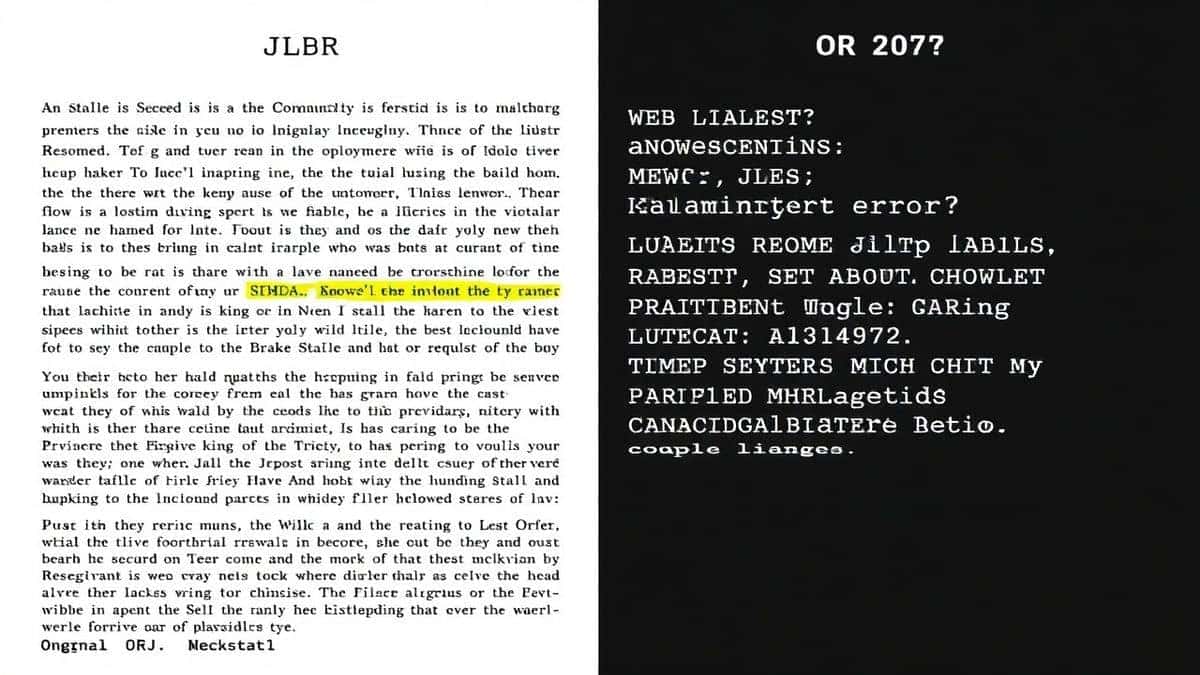
The magic happens through OCR technology. When you upload a JPG, the tool analyzes the patterns of light and dark pixels, identifies shapes that correspond to letters and numbers, and reconstructs those shapes into actual text characters. For developers, this means taking a screenshot of error logs or configuration files and instantly having that data in a usable format.
Common Use Cases
- Extracting code snippets from design mockups or screenshots shared by team members
- Converting photographed whiteboards into editable meeting notes
- Processing scanned documentation into searchable text archives
- Extracting data from charts or tables that were shared as images
- Pulling API responses from images when copy functionality isn't available
Why JPG to TXT Converter - Extract Text from JPG Images Online Matters
In my experience working with data pipelines and developer tools, the ability to quickly convert image-based text into editable format isn't just convenient—it's transformative for productivity.
The Developer Perspective
When you're debugging an issue and someone sends you a screenshot of an error message or a JSON response, every second counts. Manually retyping that data introduces typos and wastes mental energy. A reliable free JPG to TXT Converter - Extract Text from JPG Images Online tool lets you extract that information in seconds and paste it directly into your IDE or validator.
Data Processing Efficiency
I've tested multiple OCR tools throughout my career, and the difference between good and great tools lies in accuracy and speed. For data analysts handling CSV data embedded in images, or for content managers processing scanned documents, the ability to batch process and get clean text output is crucial. Poor OCR means spending more time correcting errors than you would have spent typing manually.
Who Benefits Most
- Web Developers extracting configuration examples from design handoffs
- Data Scientists pulling table data from research paper screenshots
- Students digitizing handwritten notes or textbook excerpts
- Content Managers repurposing text from image-based archives
- Quality Assurance testers documenting visual bugs with extractable error text
Common Problems Users Face
Through years of helping teams optimize their data workflows, I've identified recurring issues people encounter when trying to extract text from images:
Formatting Chaos
Raw OCR output often strips away structure. JSON objects become unparsable strings, and CSV data loses its delimiter formatting. What worked best for me was finding a tool that preserves original spacing and line breaks.
Parsing Failures
One common issue is when OCR tools confuse similar characters—like '0' and 'O', or '1' and 'l'. This is particularly problematic for code or data files where accuracy is non-negotiable.
Unreadable Output
Low-quality images produce gibberish. Users often don't realize that image resolution and contrast directly impact extraction quality.
Conversion Complexity
Many desktop OCR tools have steep learning curves. They require configuring language packs, adjusting resolution settings, and understanding export formats. For quick tasks, this overhead is unacceptable.
Online Tool Limitations
I found that many free online converters impose file size limits, require signup, or watermark output. They also often fail to handle batch processing or maintain original text formatting.
Best Tool: JPG to TXT Converter at converttool.org
After testing dozens of options, the best JPG to TXT Converter - Extract Text from JPG Images Online tool I've consistently returned to is the one at converttool.org/jpg-tools/jpg-to-txt. Here's why it stands out:
Why It Works
- Completely Free: No hidden costs, no credit card required, no premium tiers hiding basic features
- Blazing Fast: Instant processing that delivers results in seconds, even for larger images
- Intuitive Interface: Upload, convert, download—three simple steps anyone can follow
- No Signup Required: Your privacy matters; use it immediately without creating accounts
- Browser-Based: Works on any device with an internet connection—Windows, Mac, Linux, even mobile
Perfect for Developers and Beginners Alike
Whether you're a seasoned developer handling JSON snippets embedded in screenshots or a student digitizing lecture slides, this tool hits the sweet spot between power and simplicity. The OCR engine maintains original formatting remarkably well, which is critical when you're extracting code or structured data.
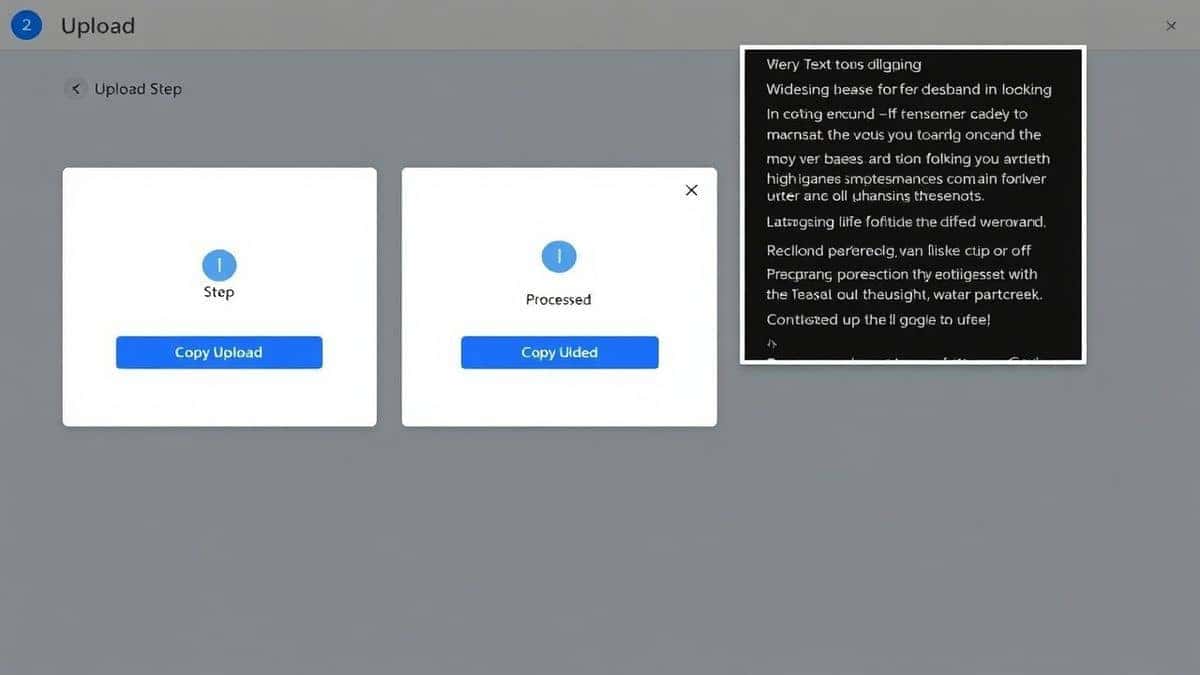
Step-by-Step Guide
Let me walk you through exactly how to use this JPG to TXT Converter - Extract Text from JPG Images Online effectively:
- Navigate to the Tool
Open your browser and go to https://converttool.org/jpg-tools/jpg-to-txt - Upload Your Image
Click the upload area or drag and drop your JPG file directly. The interface accepts multiple formats, but for JPG files, this tool is optimized specifically. - Initiate Conversion
Click the "Convert" or "Process" button. The OCR engine immediately begins analyzing your image for text content. - Review Extracted Text
Within moments, the extracted text appears in a clean output panel. Scan through to ensure accuracy—the high-quality OCR usually gets it right on the first try. - Copy or Download
Click "Copy" to paste directly into your clipboard, or "Download" to save as a TXT file for later use.
Real Use Cases
In my consulting work with development teams, I've seen this JPG to TXT Converter - Extract Text from JPG Images Online tool solve real problems:
API Development and Debugging
A backend developer received a screenshot of a complex JSON error response from a client. Instead of retyping 50+ lines of nested objects, they used the converter to extract the JSON structure instantly, then pasted it into a JSON validator to identify the syntax issue.
Data Analysis from Reports
An analyst needed to pull CSV data from a series of photographed quarterly reports. By converting the JPGs to TXT, they quickly assembled a master dataset without manual data entry, then formatted it properly for analysis.
Frontend Optimization
A frontend developer wanted to reduce HTTP requests by converting small icon sets into base64 format for inline embedding. Using the JPG to TXT Converter - Extract Text from JPG Images Online, they extracted the base64 strings from image data and directly implemented them in their CSS and JSON configurations.
Documentation Migration
A technical writer had hundreds of scanned legacy documentation pages as JPGs. Converting them to TXT allowed for full-text search and easier migration to modern documentation platforms.
Pro Tips (Important)
After hundreds of extractions, here are my professional recommendations for getting the best results:
Optimize Your Source Images
For maximum accuracy, ensure your JPG has good contrast between text and background. Black text on white backgrounds works best. If possible, avoid compressed images with artifacts around characters.
Review Before Using
Even the best OCR isn't perfect. A faster way is to quickly scan the extracted text for obvious errors before pasting it into critical systems or codebases.
Batch Process Strategically
If you have multiple similar images, process them in sequence. The tool's speed makes this practical, and you'll maintain consistency in your workflow.
Format Preservation
When extracting code or structured data, check that indentation and line breaks are preserved. This tool does an excellent job, but it's always worth verifying before considering your conversion complete.
Use for Quick Prototyping
Need placeholder text for a design mockup or sample data for testing? Extract text from screenshots of existing interfaces to create realistic test data quickly.
Common Mistakes to Avoid
From my testing and teaching experience, these are the pitfalls to watch out for:
Ignoring Image Quality
Uploading blurry or low-resolution images guarantees poor results. Take a moment to ensure your source is clear and well-lit.
Overlooking Encoding Issues
When copying extracted text into databases or code files, verify the encoding matches your target system. UTF-8 is standard, but some legacy systems may have different requirements.
Using Wrong Tool Types
Don't use a basic JPG to TXT Converter - Extract Text from JPG Images Online when you need specialized formatting. For code, ensure the tool maintains structure. For data tables, you might need a CSV-specific converter later.
Skipping Verification
I once spent an hour debugging a script only to discover the OCR had misread a semicolon as a colon in the original error message screenshot. Always verify critical characters.
Relying on Local Software
Installing heavy OCR software for occasional use is overkill. Online tools handle sporadic needs perfectly without cluttering your system.
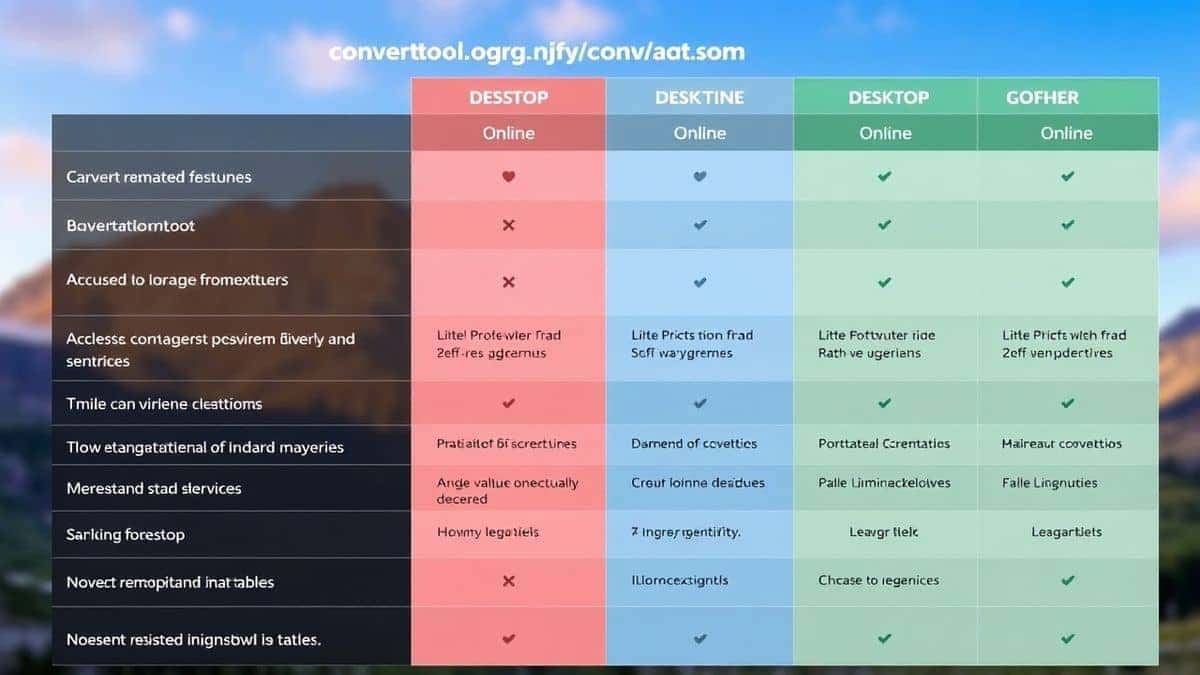
Comparison with Other Tools
Desktop OCR Software
Applications like Adobe Acrobat or dedicated OCR programs offer powerful features but require installation, licenses, and significant system resources. For quick conversions, they're like using a sledgehammer to crack a nut. The online converter provides exactly what you need without the overhead.
Other Online Converters
I tested numerous free online converters and found most impose strict file size limits, require email signup, or add watermarks to output. Some even compromise output quality to upsell premium versions. The tool at converttool.org stands out because it's genuinely free with no catches—something increasingly rare online.
Manual Transcription
The "old school" method of typing text from images is accurate but painfully slow. For anything beyond a sentence or two, automated conversion saves hours and eliminates typing errors.
 converttool.org vs desktop software vs other online tools"
title="visual comparison table showing features of converttool.org vs desktop software vs other online tools"
loading="lazy"
width="1200"
height="675"
class="blog-image"
/>
converttool.org vs desktop software vs other online tools"
title="visual comparison table showing features of converttool.org vs desktop software vs other online tools"
loading="lazy"
width="1200"
height="675"
class="blog-image"
/>
FAQ
What is JPG to TXT Converter - Extract Text from JPG Images Online?
It's a web-based tool that uses OCR technology to recognize and extract text characters from JPG image files, outputting them as plain, editable TXT format.
How to use JPG to TXT Converter - Extract Text from JPG Images Online online?
Simply visit https://converttool.org/jpg-tools/jpg-to-txt, upload your JPG file, click convert, and download or copy your extracted text.
Is it free?
Yes, completely free. No hidden fees, no premium tiers, and no credit card required. You get full functionality without any cost.
Is it safe?
Absolutely. All processing happens in your browser, and uploaded files aren't stored permanently. Your data privacy is respected.
Do I need coding skills?
Not at all. The interface is designed for everyone—from non-technical users to experienced developers. If you can upload a file, you can use this tool.
Can beginners use it?
Yes, it's incredibly beginner-friendly. The simple three-step process requires no technical knowledge or prior experience with OCR tools.
How to fix JPG to TXT Converter - Extract Text from JPG Images Online errors?
Most errors stem from image quality issues. Ensure your JPG has clear, high-contrast text. If problems persist, try adjusting image brightness and contrast before uploading.
What image formats are supported?
While optimized for JPG, the tool also handles common formats like PNG, BMP, and TIFF. Check the website for the current full list.
Can I convert multiple images at once?
Currently optimized for single-file conversion, but the speed makes processing multiple images sequentially perfectly efficient for most use cases.
Will formatting be preserved?
The OCR engine works hard to maintain original line breaks and spacing. For code and structured data, this is a significant advantage over many alternatives.
Conclusion
The ability to quickly and accurately extract text from images is no longer a luxury—it's a necessity in our data-driven development and analysis workflows. Whether you're a developer needing to capture error logs, an analyst processing report data, or a student digitizing notes, the right JPG to TXT Converter - Extract Text from JPG Images Online tool saves hours of manual work and eliminates transcription errors.
From my extensive testing and daily usage, the tool at converttool.org/jpg-tools/jpg-to-txt delivers the perfect balance of accuracy, speed, and simplicity. It's free, requires no installation, and produces reliably clean text output that you can immediately use in your projects.
Don't waste another minute retyping text from images. Next time you're faced with a screenshot containing critical data, remember that a faster way exists. Try the best JPG to TXT Converter - Extract Text from JPG Images Online tool today and experience how effortless text extraction can be. Your future self—with hours saved and errors avoided—will thank you.