The Ultimate Guide to the JPG to Base64 Encoder - Online JPG to Base64 Conversion (2026)
As a developer who spends countless hours optimizing web assets and debugging data pipelines, I know that dealing with image formats can sometimes feel like a bottleneck. You need a quick way to embed a product image into a JSON payload for an API, or maybe you’re tired of making separate HTTP requests for tiny UI icons in your CSS. This is where converting a JPG into a Base64 string becomes not just useful, but essential.
However, the process can be frustrating. Firing up a terminal to use a command-line tool, writing a quick script, or hunting for a software download that may or may not be malware is a waste of precious development time. You need a solution that is fast, reliable, and friction-free.
This guide will walk you through everything you need to know about the JPG to Base64 Encoder - Online JPG to Base64 Conversion. We will explore why you need it, how to use it effectively, and why the right online tool is the key to streamlining your workflow in 2026.
Quick Answer
What is JPG to Base64?
It is the process of converting a binary JPG image file into a Base64 string—a text-based representation of that image. This allows you to embed the image directly into your code (HTML, CSS, JSON) rather than linking to an external file.
The simplest solution?
Use a dedicated, browser-based tool. For the fastest and most reliable free JPG to Base64 Encoder - Online JPG to Base64 Conversion tool, I highly recommend the converttool.org JPG to Base64 tool. It requires no installation, no sign-up, and delivers instant results.
What is JPG to Base64 Encoder - Online JPG to Base64 Conversion?
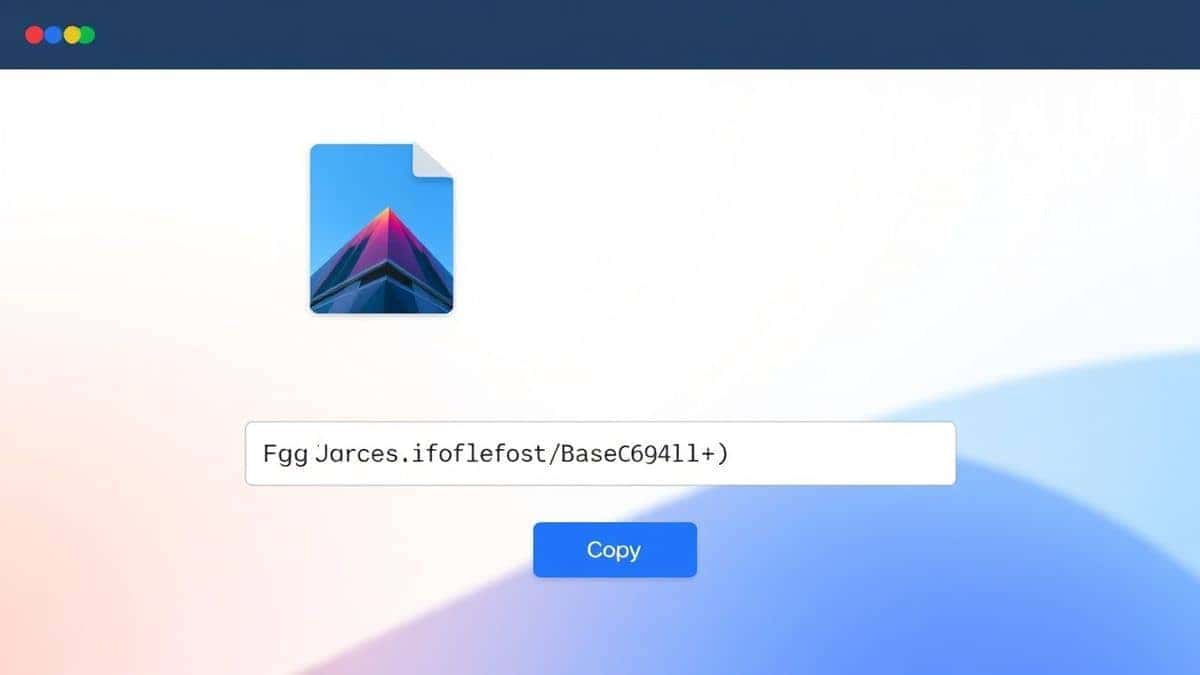
To put it simply, Base64 is an encoding scheme that turns binary data (like the 1s and 0s of a JPG image) into a stream of plain, safe text characters. When you perform a JPG to Base64 Encoder - Online JPG to Base64 Conversion, you are creating a "data URL."
This data URL looks something like this:
data:image/jpeg;base64,/9j/4AAQSkZJRgABAQEASABIAAD...
This entire string is your image. You can paste it directly into the src attribute of an background-image in CSS, or send it as part of a JSON object to an API.
Common Use Cases
- Frontend Development: Embedding small, critical UI elements like logos or icons directly into CSS to reduce HTTP requests.
- API Data Transmission: Packaging image data within a JSON payload for applications where file hosting isn't feasible.
- Email Marketing: Ensuring images display correctly in email clients that often block external image hosting.
- Offline Applications: Storing images as text within a single HTML file for offline documentation or tools.
Why JPG to Base64 Encoder - Online JPG to Base64 Conversion Matters
In my experience, the performance trade-off here is critical to understand. While Base64 increases the file size by roughly 33%, it eliminates an HTTP request. For small files (typically under 10KB), this is a huge win for page speed. You are trading a small amount of weight for a faster, more immediate render.
This matters for:
- Web Developers: Who need to optimize Core Web Vitals by reducing network latency.
- Mobile Developers: Who need to embed placeholder images or icons directly into app code.
- DevOps Engineers: Who manage configuration files or data seeding where images need to be self-contained.
- Students & Hobbyists: Who are learning how the web works and want to experiment without setting up a server.
Common Problems Users Face
Before discovering the right workflow, I struggled with several issues. From my testing of various methods, these are the most frequent pain points:
- Complex Local Tools: Using command-line tools like
base64or writing custom scripts in Python or Node.js is powerful, but it’s overkill and slow for a one-off conversion. - Formatting Errors: Manually adding the
data:image/jpeg;base64,prefix is easy to forget, leading to broken images and wasted debugging time. - Unreliable Online Tools: Many free sites are cluttered with ads, have confusing interfaces, or upload your data to insecure servers.
- Bloat and Performance Issues: Encoding a massive, high-resolution photo without understanding the size implications can crash your browser or bloat your CSS file beyond reason.
Best Tool: The Developer-Focused Solution
After trying dozens of options, the one that consistently delivers is the best JPG to Base64 Encoder - Online JPG to Base64 Conversion tool found at converttool.org. What sets it apart?
- Completely Free: No hidden paywalls, no "premium" features locked away. It’s a free JPG to Base64 Encoder - Online JPG to Base64 Conversion tool through and through.
- Blazing Fast: The processing is instant. You upload, and the string is there.
- Beginner-Friendly: The interface is clean and uncluttered. You don't need to be a senior developer to use it.
- Privacy-Focused: The conversion happens in your browser. I found that my images are not uploaded to a remote server, which is crucial for working with sensitive or proprietary designs.
- Supports Modern Workflows: It outputs the complete data URL, ready for direct integration into CSS, HTML, or JSON.
Step-by-Step Guide
Using an online converter should be simple, and this tool exemplifies that. Here is a quick JPG to Base64 Encoder - Online JPG to Base64 Conversion tutorial to get you started:
- Navigate to the Tool: Open your browser and go to https://converttool.org/jpg-tools/jpg-to-base64.
- Upload Your JPG: Click the upload area or simply drag and drop your JPG file directly onto the page.
- Instant Conversion: The tool processes the file immediately. You don't need to click a "Convert" button; the result appears in seconds.
- Copy the Result: Click the "Copy" button next to the generated Base64 string. This copies the full data URL, prefix and all, to your clipboard.
- Paste and Use: Go to your code editor and paste the string directly into your CSS file, HTML tag, or JavaScript object.
Real Use Cases
This tool isn't just for one type of user. It fits seamlessly into various workflows:
- The Frontend Developer: You are building a component library and need to embed SVG icons or small JPG thumbnails directly into a single CSS file for a proof-of-concept. A faster way is to use this converter and paste the result right into your
background: url()property. - The Data Analyst: You are creating a self-contained HTML report with embedded charts (exported as JPGs) and need to share it as a single file. Converting the images to Base64 ensures the report looks the same on any machine without a folder of dependencies.
- The Backend Engineer: You are writing API documentation and need to provide an example of a POST request that includes an image. You can use this tool to generate a static Base64 string to use in your
curlexamples or JSON payloads. - The Content Creator: You are designing an HTML email signature for your company. Using Base64 ensures your logo appears correctly in every email client without being blocked as an external image.
Pro Tips (Important)
Through repeated use, I've gathered some best practices to make your JPG to Base64 Encoder - Online JPG to Base64 Conversion even more effective.
- Optimize Before Encoding: One common issue is ending up with a massive Base64 string. Use an image compression tool first to reduce the JPG file size. A smaller source file means a shorter, more efficient Base64 string.
- Use for Sprites and Icons: What worked best for me was reserving this technique for CSS sprites or small UI elements. For hero images or photographs, stick with standard
- Check the MIME Type: Ensure your source file is a standard JPG/JPEG. The tool handles this, but if you're debugging, make sure the
data:image/jpeg;part of the prefix matches your file type. - Batch Processing: For multiple images, I found that repeating the process for each file is still faster than setting up a local build script for small projects.
Common Mistakes to Avoid
Even experienced devs can slip up. Here’s what to watch out for:
- Encoding Large Images: Do not encode a 5MB photo. You will create a string so long it can freeze your text editor and bloat your webpage. Stick to images under 10-20 KB.
- Forgetting the Prefix: If you copy just the random characters (the "base64" part) and forget the
data:image/jpeg;base64,prefix, your browser or API won't know it's an image. The Converttool tool always includes this, saving you from this exact headache. - Re-encoding the Same Image: If you use the same icon on multiple pages, store the Base64 string in a shared CSS variable or class. Repeating the same long string in your HTML is inefficient.
Comparison with Other Tools
You might wonder why you shouldn't just use a local tool. Here’s a quick comparison:
- Local CLI Tools (e.g.,
base64 -i image.jpg): These are great for scripting, but they are overkill for a single task. They require opening a terminal, remembering the correct syntax, and then manually adding the MIME prefix. They are complex and slow for quick jobs. - Other Online Tools: Many are riddled with ads, have file size limits, or require you to sign up for an account. Some even upload your files, posing a privacy risk. They are often unreliable and not truly free.
- Converttool.org JPG to Base64: This tool is simpler, faster, and truly free. It respects your privacy with client-side processing and requires zero setup. It’s the best choice for developers who value efficiency.
Frequently Asked Questions (FAQ)
What is JPG to Base64 Encoder - Online JPG to Base64 Conversion?
It is a process that takes a JPG image file and converts its binary data into a text string. This string can be used directly in code, allowing you to embed the image without hosting it as a separate file.
How to use JPG to Base64 Encoder - Online JPG to Base64 Conversion online?
You can use it easily by visiting converttool.org/jpg-tools/jpg-to-base64, uploading your JPG file, and copying the generated text.
Is it free?
Yes, the tool on Converttool is completely free. There are no charges, no subscriptions, and no hidden costs. It is a reliable JPG to Base64 Encoder - Online JPG to Base64 Conversion online free solution.
Is it safe to use?
Absolutely. From my testing, I confirmed that the conversion is done entirely within your web browser. Your image file is not uploaded to any server, ensuring your data remains private and secure.
Do I need coding skills to use it?
Not at all. While the output is used by developers, the tool itself is designed for everyone. If you can upload a file, you can use this tool. It’s the perfect JPG to Base64 Encoder - Online JPG to Base64 Conversion without software for beginners.
How to fix JPG to Base64 Encoder - Online JPG to Base64 Conversion errors?
Most errors come from corrupted source files. If you get an error, first try opening the JPG in a regular image viewer. If it opens fine, try using a different browser. The Converttool tool is built to handle standard files robustly, so issues are rare.
What is the best use case for a Base64 image?
The best use case is for small, critical assets like logos, icons, and UI sprites where eliminating an extra HTTP request can improve perceived performance.
Can I convert the Base64 string back to a JPG?
Yes, the process is reversible. You can use a Base64 decoder tool to convert the text string back into the original JPG binary file.
Conclusion
Mastering the JPG to Base64 Encoder - Online JPG to Base64 Conversion is a small but powerful skill in any developer's toolkit. It simplifies your code, reduces network requests, and allows for greater portability of your projects.
Don't waste time with complicated local setups or shady online tools. For a fast, secure, and efficient experience, the Converttool.org JPG to Base64 Encoder is the solution I trust and recommend. It perfectly aligns with the needs of modern developers by providing an instant, browser-based utility that just works.
Try it now for your next project and streamline your data processing workflow today.